The RDS Catch-22: When Cost-Saving Automation Hits AWS Capacity Limits
A cautionary tale of cloud automation: how an RDS start/stop schedule led to a capacity lock-in and what you can do to avoid it.
Introduction: The Promise of Cloud Elasticity
One of the greatest benefits of the cloud is elasticity. We can scale up when needed and scale down (or off) when not. For non-production environments—dev, staging, QA—it's common practice to automate start/stop schedules to reduce costs. Why pay for compute resources at 3 AM when no developers are working?
Last year, I implemented exactly this pattern in the AWS ap-south-1 (Mumbai) region. It worked flawlessly for months. It saved money. It was clean.
Until one morning, it wasn't.
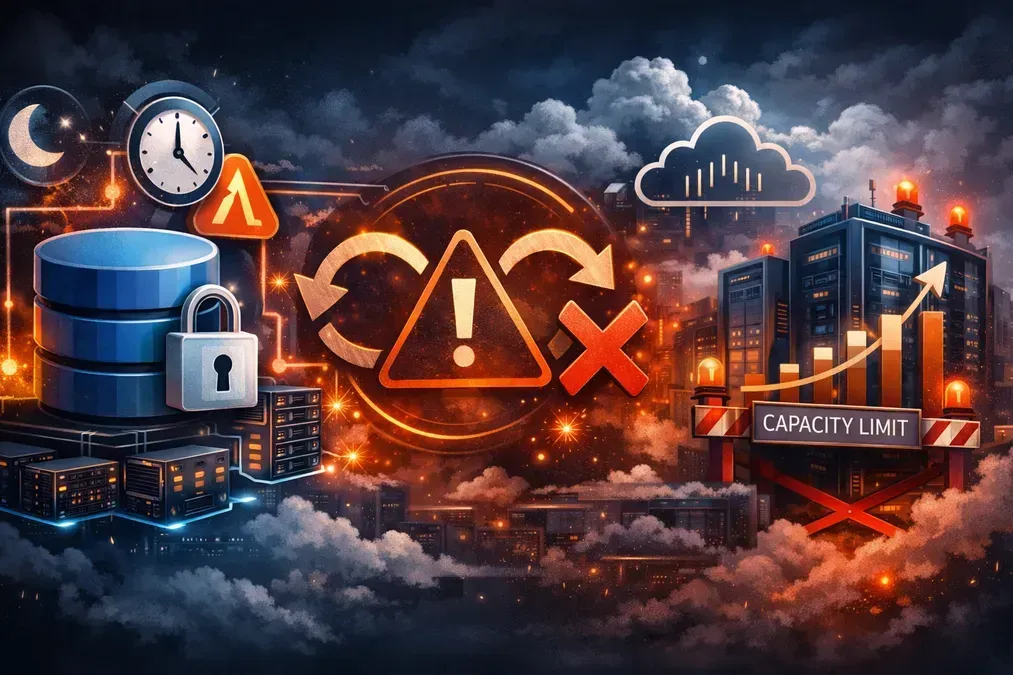
This is the story of a cloud catch-22: an RDS instance that couldn't start due to capacity issues, couldn't be modified because it was stopped, and forced us to rethink our entire recovery strategy.
The Incident: A Monday Morning Surprise
The Setup
- Region:
ap-south-1(Mumbai) - Engine: Amazon RDS for MySQL
- Instance Class:
db.t4g.medium - Configuration: Single-AZ, Encrypted (KMS)
- Automation: EventBridge + Lambda to stop at 11 PM, start at 7 AM
The Failure
On a routine Monday morning, the automation triggered the StartDBInstance API call. Instead of transitioning to available, the instance status flickered and returned an error:
InsufficientDBInstanceCapacity
This was surprising. ap-south-1 is a major region. db.t4g.medium is a common instance type. Why would capacity be unavailable?
I logged into the AWS Console to manually start the instance. Same error.
The Catch-22
Naturally, my next thought was: "Okay, I'll change the instance class to something more available, or switch Availability Zones (AZ)."
That's when I hit the wall.
- I tried to modify the instance class: The AWS Console greyed out the option.
- I tried via AWS CLI: The API returned an error stating modifications to the instance class cannot be performed while the instance is
stopped. - I tried to start it again: It failed with
InsufficientDBInstanceCapacity.
The Logic Lock:
- To start the instance, AWS needs capacity in that AZ for that class.
- To change the class/AZ, the instance must be
available(running). - To become
available, the instance must start.
I was stuck in a loop. I couldn't start without modifying, and I couldn't modify without starting.
Deep Dive: Why Did This Happen?
1. Stopped Instances Release Hardware
When you stop an RDS instance, you are not reserving the underlying physical hardware. You are only retaining the storage (EBS) and the configuration. When you start it, AWS treats it similarly to launching a new compute resource: it must find available hardware in the selected Availability Zone that matches your instance class.
If that specific AZ is constrained at that moment (due to other customers' demand), your start request will fail.
2. The Console Limitation
While AWS allows some modifications on stopped instances (like storage size), instance class changes often require the instance to be in an available state to validate compatibility and network mapping. This UI/API restriction is what created the "catch-22" feeling.
3. Capacity is AZ-Specific
Cloud capacity is not region-wide; it is Availability Zone-specific. Even in mature regions like Mumbai, ap-south-1a might have capacity while ap-south-1b does not. By hardcoding our instance to a specific AZ, we reduced our odds of recovery.
The Resolution: Breaking the Loop
Since we couldn't start the existing resource, we had to create a new one. Here is the step-by-step recovery process that worked for us.
Step 1: Locate the Latest Snapshot
Fortunately, we had Automated Backups enabled.
- Navigate to RDS Dashboard → Snapshots.
- Filter by Automated snapshots.
- Identify the most recent snapshot taken before the instance was stopped.
Step 2: Restore to a New Instance
- Select the snapshot → Actions → Restore Snapshot.
- DB Instance Identifier: Give it a new name (e.g.,
my-db-restored). - DB Instance Class: Change this. We switched from
db.t4g.mediumtodb.t3.large(which had available capacity). - Availability Zone: Select "No Preference". This allows AWS to place the instance in any AZ within the VPC that has capacity.
- Network & Security: Ensure the VPC, Subnet Group, and Security Groups match the original instance.
Step 3: Update Application Configuration
Critical: A restored instance gets a new Endpoint URL.
- Old:
my-db.xyz.ap-south-1.rds.amazonaws.com - New:
my-db-restored.abc.ap-south-1.rds.amazonaws.com
We updated our application's configuration (stored in AWS Secrets Manager) to point to the new endpoint. Within 10 minutes, the application was connected and healthy.
Step 4: Cleanup
Once verified, we deleted the stuck stopped instance to avoid confusion (you are charged for storage on stopped instances).
Lessons Learned & Best Practices
This incident changed how we design non-production environments. Here are the key takeaways for your cloud strategy.
1. Automation Needs a Rollback Plan
If you automate stop/start, you must automate the failure recovery.
- Action: Create a runbook specifically for
InsufficientDBInstanceCapacity. - Action: Consider using a Lambda function that detects start failures and triggers a snapshot restore automatically.
2. Decouple Applications from RDS Endpoints
Hardcoding RDS endpoints makes failover painful.
- Best Practice: Use a CNAME record in Route53 (e.g.,
db.myapp.com) that points to the RDS endpoint. When you restore a new instance, just update the DNS record. - Better Practice: Use AWS Secrets Manager or Parameter Store to inject the endpoint at runtime.
3. Avoid AZ Affinity for Non-Prod
For production, you might need specific AZs for latency reasons. For non-prod?
- Best Practice: Set
availability_zone = nullin Terraform/CloudFormation. Let AWS pick the healthiest zone at creation time.
4. Test Your Stop/Start Cycle
Don't assume stop/start works forever.
- Action: Once a quarter, manually stop a non-prod instance and verify it starts successfully.
- Action: Chaos Engineering: Simulate a start failure and measure your Recovery Time Objective (RTO).
5. Consider Multi-AZ (Even for Non-Prod)
While Multi-AZ costs more, it provides a standby in a different AZ.
- Benefit: If the primary AZ has capacity issues, the standby might still be promotable (though note: Multi-AZ standbys are not directly startable if the primary is stopped).
- Alternative: Use Aurora Serverless for non-prod, which scales to zero without the "stopped instance" capacity risk.
Technical Appendix: CLI Commands
For engineers who prefer the CLI, here are the commands used during diagnosis and recovery.
Check Instance Status:
aws rds describe-db-instances \
  --db-instance-identifier my-db-instance \
  --query 'DBInstances[0].{Status:DBInstanceStatus,AZ:AvailabilityZone}'
Attempt Start (to confirm error):
aws rds start-db-instance \
  --db-instance-identifier my-db-instance
Restore from Snapshot (The Fix):
aws rds restore-db-instance-from-db-snapshot \
  --db-instance-identifier my-db-restored \
  --db-snapshot-identifier rds:my-db-instance:2023-10-01-00-00 \
  --db-instance-class db.t3.large \
  --no-multi-az
Conclusion
Cloud cost optimization is essential, but it should never come at the expense of operability. The InsufficientDBInstanceCapacity error on a stopped instance is a rare edge case, but it exposes a critical truth: stopped resources are not guaranteed resources.
By designing for recovery—using snapshots, flexible AZ placement, and decoupled endpoints—we turned a potential morning outage into a minor configuration update.
Want to optimize your cloud costs without risking availability? Contact us at Coding Protocols. We help organizations build resilient, cost-efficient cloud architectures.